- DATE:
- AUTHOR:
- The SafetyChain Team

CAPA Management
What's New
CAPA is now Generally Available to all customers. This release gives your quality teams new ways to see, share, and act on corrective action work.
The new CAPA Dashboard turns your CAPA data into live operational insight, Secure Profile sharing opens controlled visibility to stakeholders outside of the CAPA system, and targeted enhancements like Linked CAPAs on the Record View and Resource assignment for Template Tasks cut steps out of everyday workflows.
New to CAPA? The Availability section below will help you get started. Want a refresher on everything CAPA can do? Check out our previous release notes here and here.
Introducing the CAPA Dashboard
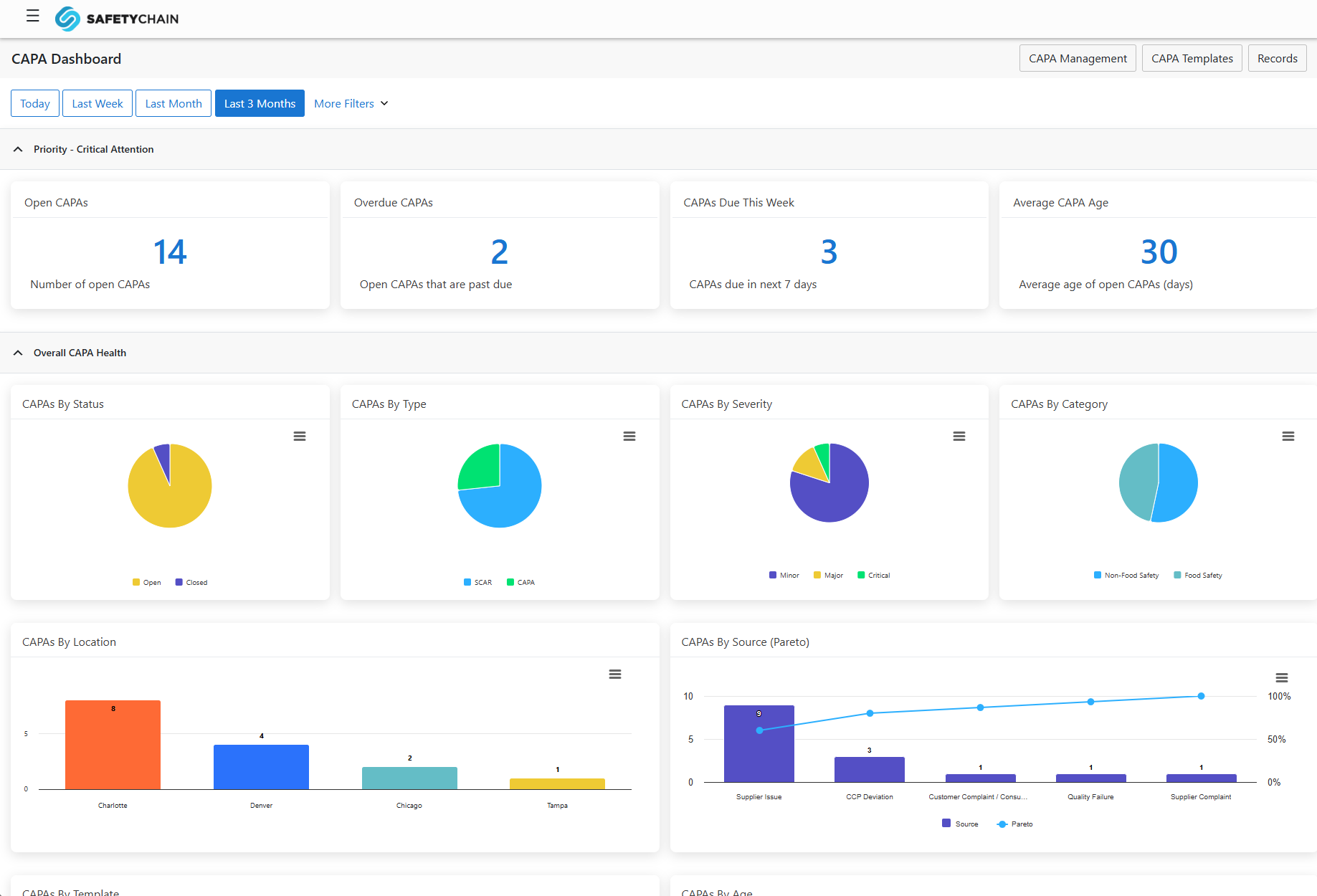
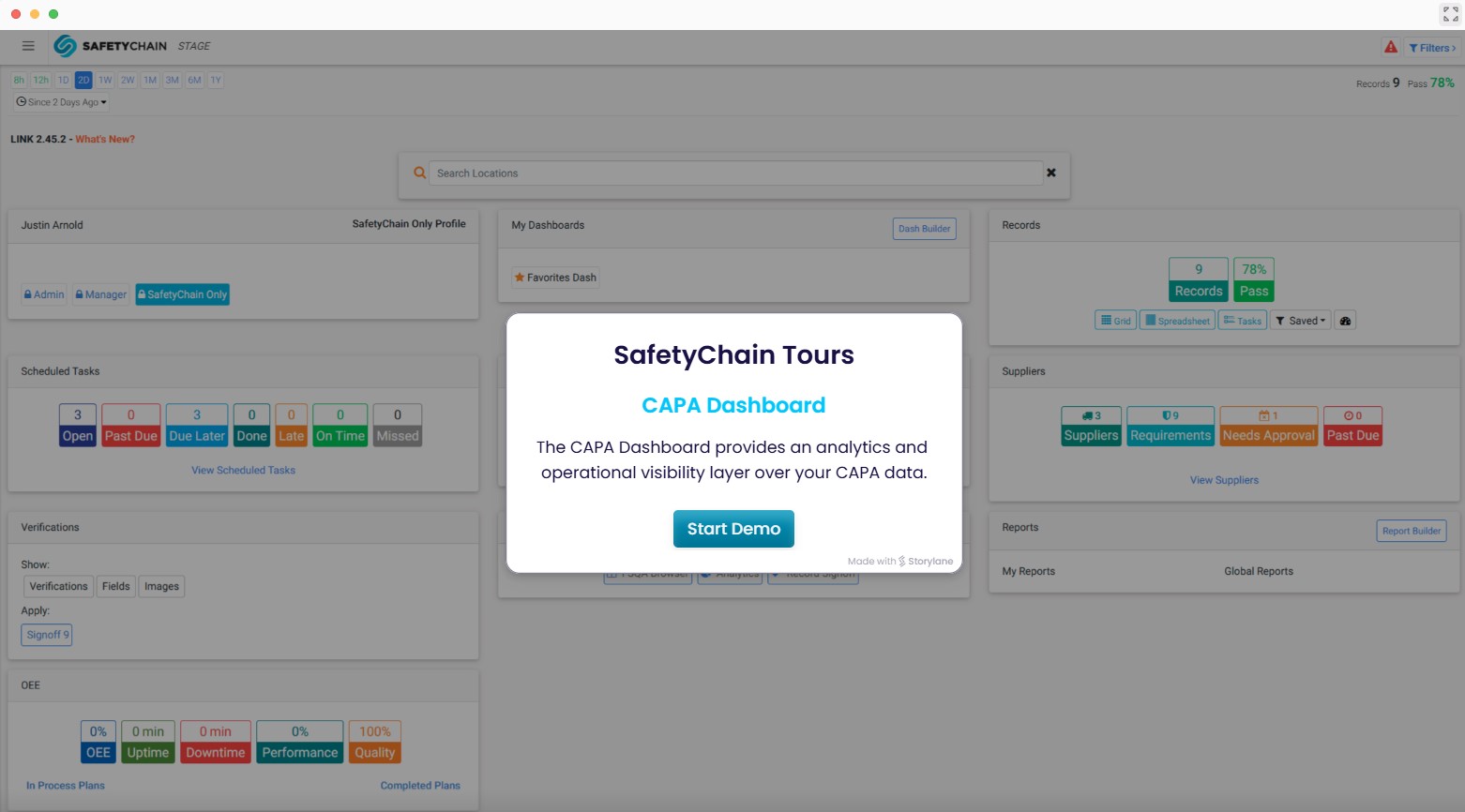
The CAPA Dashboard is a new destination in the Corrective Actions menu that gives you an at-a-glance view of CAPA health across your organization, with the ability to drill into CAPAs to take fast action. A page-level filter section with an Event Date selector and multi-select filters for Template Type, Location, Status, Severity, Owner Workgroup, Resources, and more governs every metric on the page, and your active selections stay visible as removable chips.
The Dashboard delivers fifteen metrics across four sections:
4 Priority KPI cards (Open CAPAs, Overdue CAPAs, CAPAs Due This Week, Average CAPA Age)
8 distribution charts covering Status, Type, Severity, Category, Location, Source, Template, and Age
2 Step and Task metrics where you can review pending Step approvals and launch the approval flow right from the metric, plus incomplete Task counts
1 fully filterable and sortable Tasks table with inline actions for operations like editing, reassigning, and recalling Tasks
Every metric is interactive. Click a KPI value and you land in CAPA Management, pre-filtered to the exact CAPAs behind the number, with the Dashboard's filters carried forward as chips.
Share a CAPA with Secure Profiles
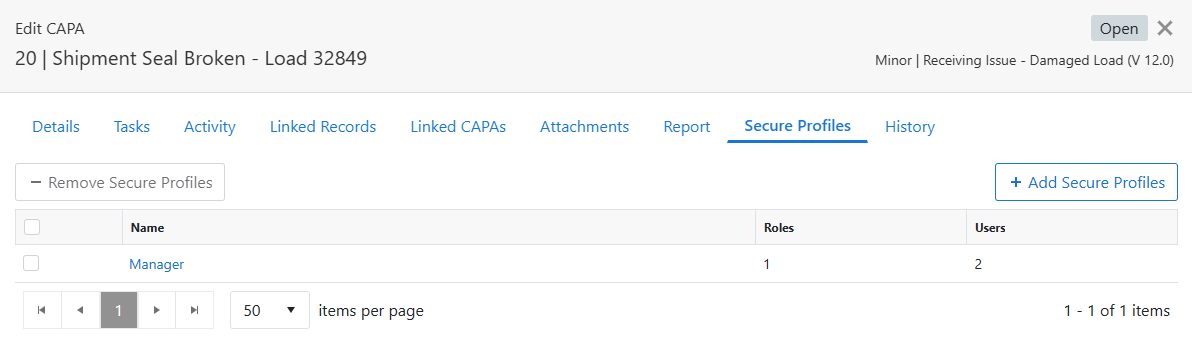
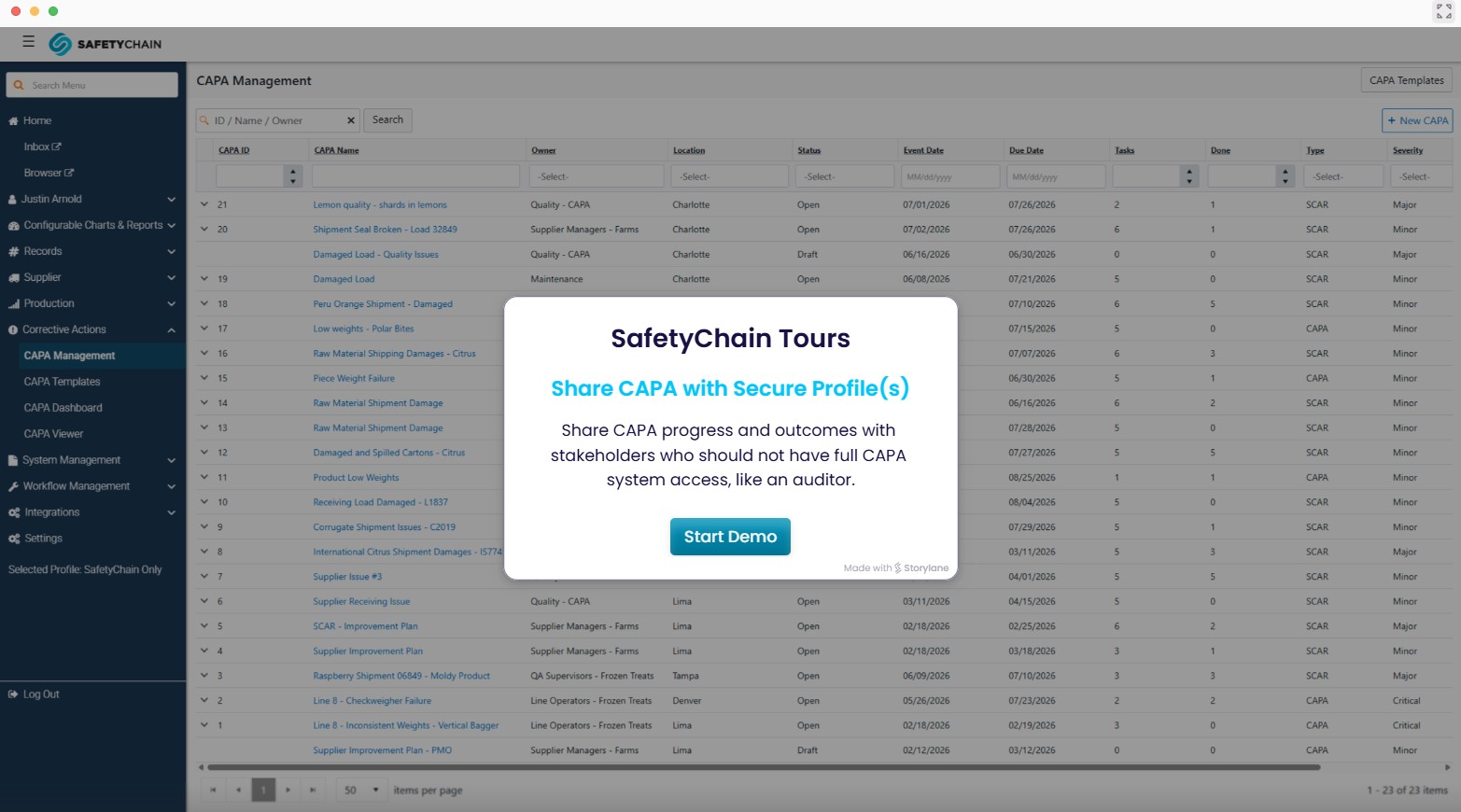
A new Secure Profiles tab in the CAPA slide-out lets you share a CAPA with one or more Secure Profiles and control exactly what each profile can see. Assign profiles with the + Add button, then use the per-profile configuration to choose which CAPA details are displayed when the CAPA is viewed. A default configuration is applied automatically when a profile is assigned, so sharing takes seconds.
Sharing also works on Closed and Voided CAPAs, so you can easily provide visibility into completed corrective actions.
The CAPA Viewer
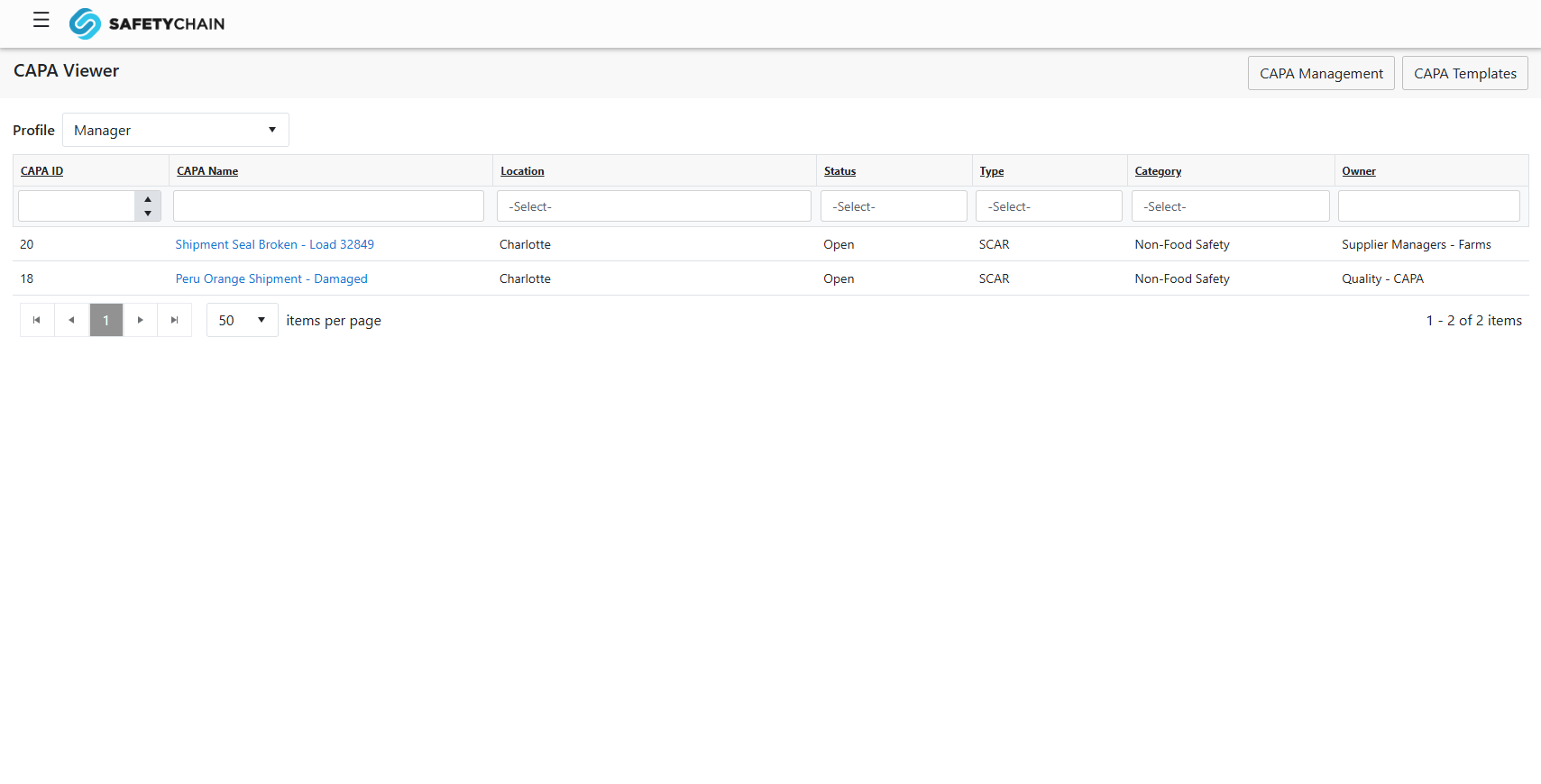
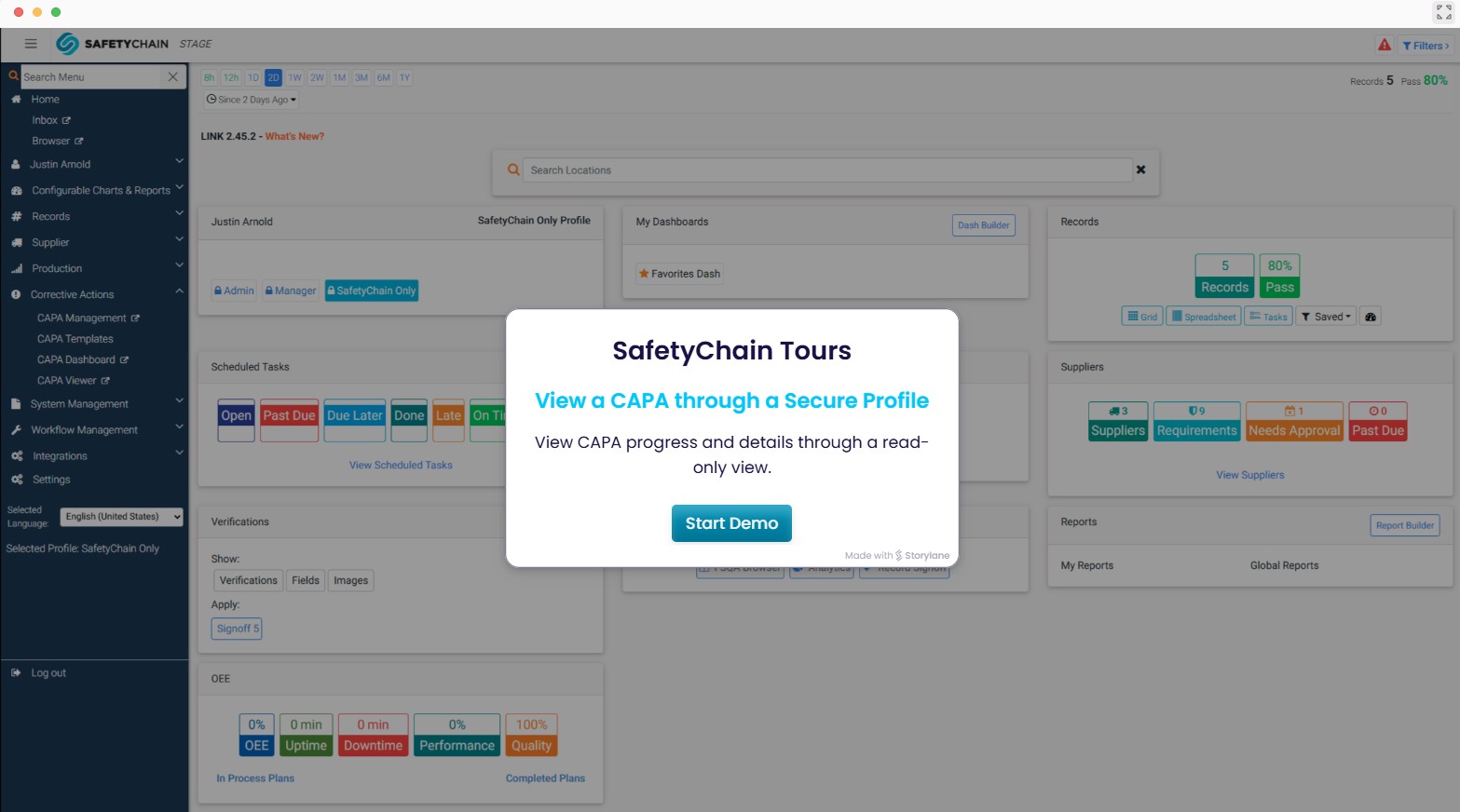
The CAPA Viewer is the other half of Secure Profile sharing: a new view-only page in the Corrective Actions menu where users with a Secure Profile can see any CAPA that has been shared with them. The Viewer loads the user's Secure Profiles, displays the CAPAs shared with the selected profile, and opens each CAPA in a View slide-out that honors the sharing configuration, including what appears in the Activity, History, and CAPA Report.
Stakeholders get the CAPA visibility they need and nothing more, with no CAPA Management access required.
Linked CAPAs on the Record View
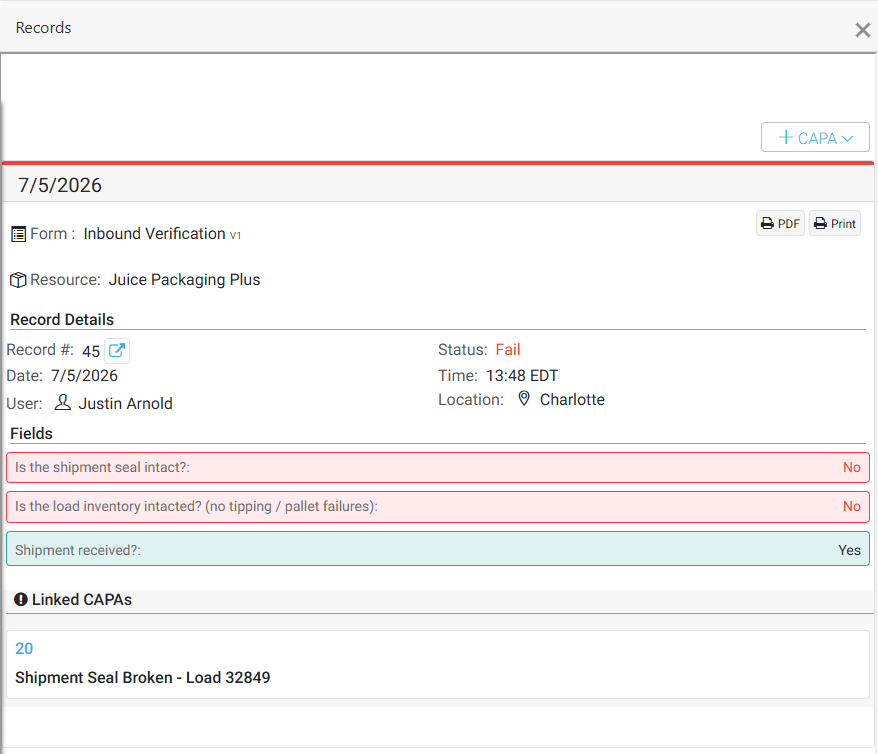
When a Record is linked to a CAPA, that CAPA now appears in a Linked CAPAs section on the standard Record View. Teams reviewing a Record can see its corrective action context immediately, without navigating to CAPA Management.
Assign a Resource to Template Tasks at CAPA creation
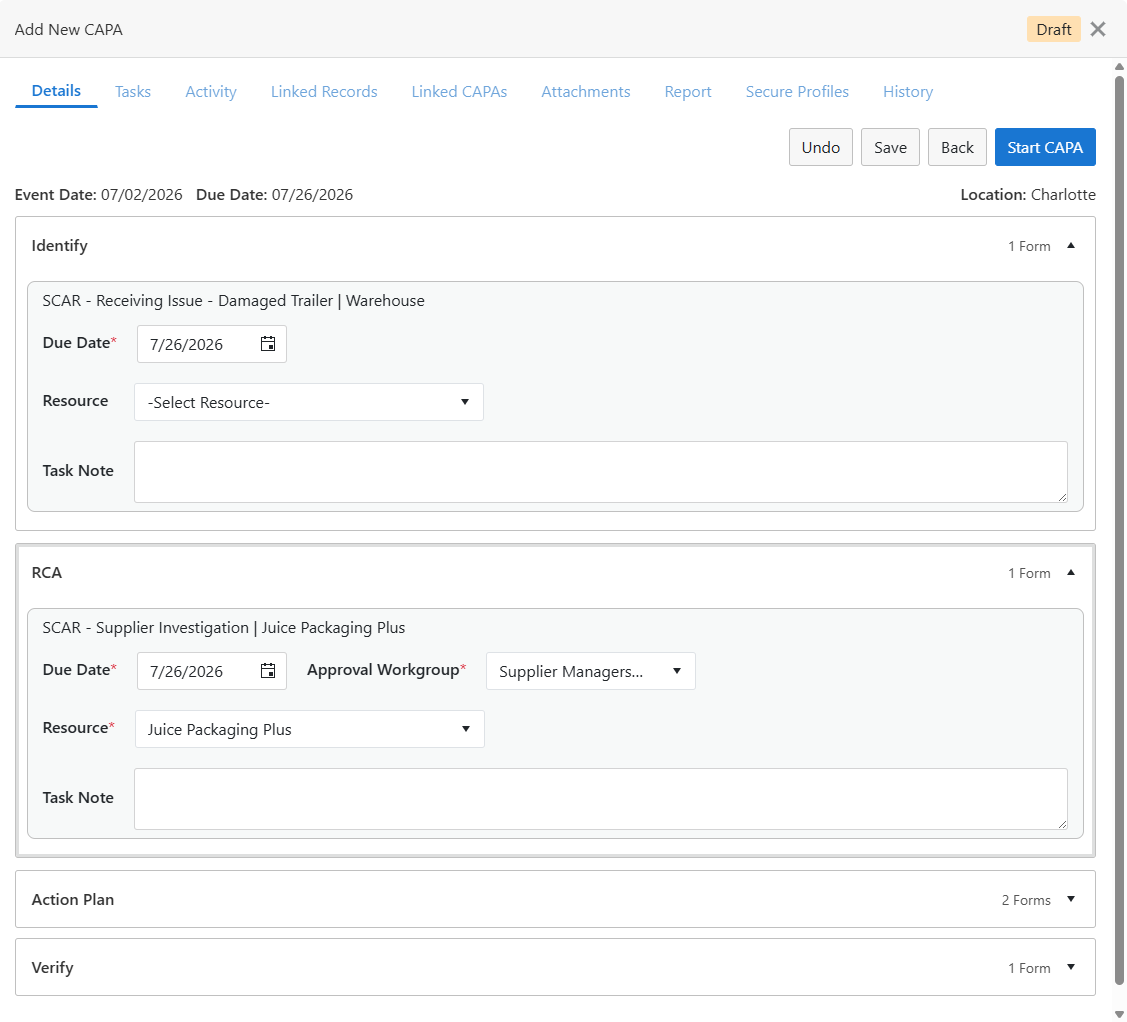
Tasks generated from CAPA Template Step Forms now include a Resource field at CAPA creation. Assign a Resource to any internal or external Task on the Task confirmation screen. The selection persists and is automatically applied when the Task is opened, which eliminates the risk of users choosing the incorrect Resource when completing a Task. The Resource field is optional for internal Tasks and required for external Tasks.
New CAPA Permissions
We've added four new permissions that control access to the features in this release. As a reminder, the full set of CAPA permissions is documented in our Knowledge Base article, CAPA Permissions.
Permission: Access to CAPA Dashboard
Granted: Users can see and access the navigation component Corrective Actions > CAPA Dashboard.
Not Granted: Users cannot see or access the navigation component Corrective Actions > CAPA Dashboard.
Permission: Access to CAPA Secure Profiles
Granted: Users can view the CAPA slide-out > Secure Profiles tab.
Not Granted: Users cannot view the CAPA slide-out > Secure Profiles tab.
Permission: Share CAPAs with Secure Profiles
Granted: The + Add and - Remove buttons are enabled in the Secure Profiles tab, allowing Secure Profiles to be assigned and removed.
Not Granted: The + Add and - Remove buttons are not displayed, so Secure Profiles cannot be assigned or removed.
Permission: Access to CAPA Viewer
Granted: Users can see and access the navigation component Corrective Actions > CAPA Viewer.
Not Granted: Users cannot see or access the navigation component Corrective Actions > CAPA Viewer.
Benefits
Spot overdue and at-risk CAPAs the moment you open the Dashboard, with no report-building or manual data pulls.
Move from insight to action: KPI metrics map to datasets, approval metrics elevate steps needing approval, and task metrics support editing, recalling, and other key operations right from the Dashboard.
Give auditors and other stakeholders visibility into CAPA progress without granting CAPA Management access. The sharing configuration keeps you in control of what each profile sees.
Related corrective actions surface directly on the Record, so teams get full context where they already work.
Resource-level Task assignment brings tighter control over error-prone manual operations.
New granular permissions let administrators roll these capabilities out deliberately, to exactly the right roles.
Availability
Beginning July 14, 2026, these capabilities are generally available to all customers. If you're already using CAPA through the Limited Availability program, no action is needed. The new features will appear automatically in your environment. If you're new to CAPA, you'll now have access to these capabilities and all other CAPA features and can enable them by assigning the new Dashboard, Secure Profile, and Viewer permissions to the appropriate roles.
For setup details, visit the Knowledge Base, where new CAPA Dashboard and CAPA Viewer articles accompany this release. If you'd like help putting these capabilities to work, your CSM is the best place to start.