- DATE:
- AUTHOR:
- The SafetyChain Team
PC App Version 7.0: The Comeback Release!
We're finalizing a significant update to the PC app, planned to go live in the coming weeks. Version 7.0 modernizes the PC app from the ground up — and introduces it under a new name: SafetyChain for Windows.
Built on Microsoft's current Windows application framework (WinUI 3), this release lays the foundation for faster feature delivery, improved hardware compatibility, and brings the PC app to parity with mobile and web on several key workflows — including new Dynamic Flow attachment and value-locking controls.
Why Now? Microsoft's Direction on UWP
The previous version of the PC app was built on UWP (Universal Windows Platform), a Microsoft framework introduced in 2015. Microsoft has since stopped actively developing UWP and has designated WinUI 3 — part of the Windows App SDK — as its official successor for modern Windows applications.
For SafetyChain, staying on UWP was not a sustainable long-term path. The UWP sandbox increasingly limited what the app could do with device hardware, and the framework no longer receives the investment needed to keep pace with Windows. v7.0 moves the PC app to WinUI 3 — the same foundation used by Outlook, Chrome, and most modern Windows desktop software.
The most meaningful consequence: the app transitions from a sandboxed UWP environment to a standard Windows desktop application. This improves hardware compatibility and removes constraints on what the app can do — and it also changes how the app is installed and managed.
What this means for how you install v7.0
Because of the scope of the UWP → WinUI 3 transition, v7.0 is a brand-new, separate application — not an automatic update to your existing PC app. A few things to know up front:
It's a fresh install, not an update. v7.0 installs as its own app with its own listing. Your current PC app will not update itself into v7.0.
Plan to run one app in production, not both. We don't recommend running v7.0 and your current app alongside each other in day-to-day use — doing so can lead to performance issues. If you want to compare the two before committing, it's fine to install v7.0 briefly on a test device, but the goal is to move fully to v7.0.
Uninstall the old app once you've moved to v7.0. Once v7.0 is working for your team, remove the previous app so you're running a single app in production. Sync any in-progress records before uninstalling.
This is opt-in for now. You control the timeline — plan, test, and roll out v7.0 on your own schedule.
Heads up: previous versions will be retired
v7.0 is opt-in today, but it is the path forward. Previous versions of the PC app (v6.48 and earlier) will be retired once the new app — including the version for enterprise/managed deployment — is fully available. We'll share timeline details separately and give plenty of notice before anything changes.
If you have any concerns about moving to the new app — hardware, deployment, kiosk setups, timing, or anything else — reach out to your Customer Success Manager. We'll work with you directly to determine the right path to v7.0 for your environment.
MSIX / Managed Deployment
For organizations that deploy the PC app via MSIX (through an MDM, manual sideloading, or other managed method), MSIX packages will be made available following the initial Store release. That distribution method is being finalized, and the timeline is still being determined.
Because the UWP → WinUI 3 change can affect how the app behaves in managed environments, we're asking customers who rely on MSIX to complete a short survey before requesting packages. This helps us understand your devices, MDM platform, and deployment setup — and it tells us who needs sideload distribution.
➜ Complete the MSIX deployment survey
What's New
Platform Modernization (UWP → WinUI 3)
The PC app has been rebuilt on Microsoft's current standard for Windows applications (WinUI 3), the same foundation used by Outlook, Chrome, and other modern desktop software. The previous version was built on UWP (Universal Windows Platform), an older Microsoft framework that has since been retired and was becoming increasingly difficult to maintain, secure, and improve.
What this means for users:
Core workflows are unchanged. Submitting forms, working with scales, offline mode, and all day-to-day operator actions work the same way. No retraining required.
The app now runs as a standard Windows desktop application — not sandboxed. The previous UWP version ran in a restricted environment that limited how it could interact with the device, including hardware like cameras and peripherals. v7.0 operates with standard Windows app permissions, the same as virtually every other desktop application. This improves compatibility and hardware support.
The interface has been modernized as part of the rebuild — updated colors, button styles, and layout refinements. Nothing disorienting; just a fresher look on the same workflows.
Minimum system requirement: Windows 10 or later
UI & Functionality Changes
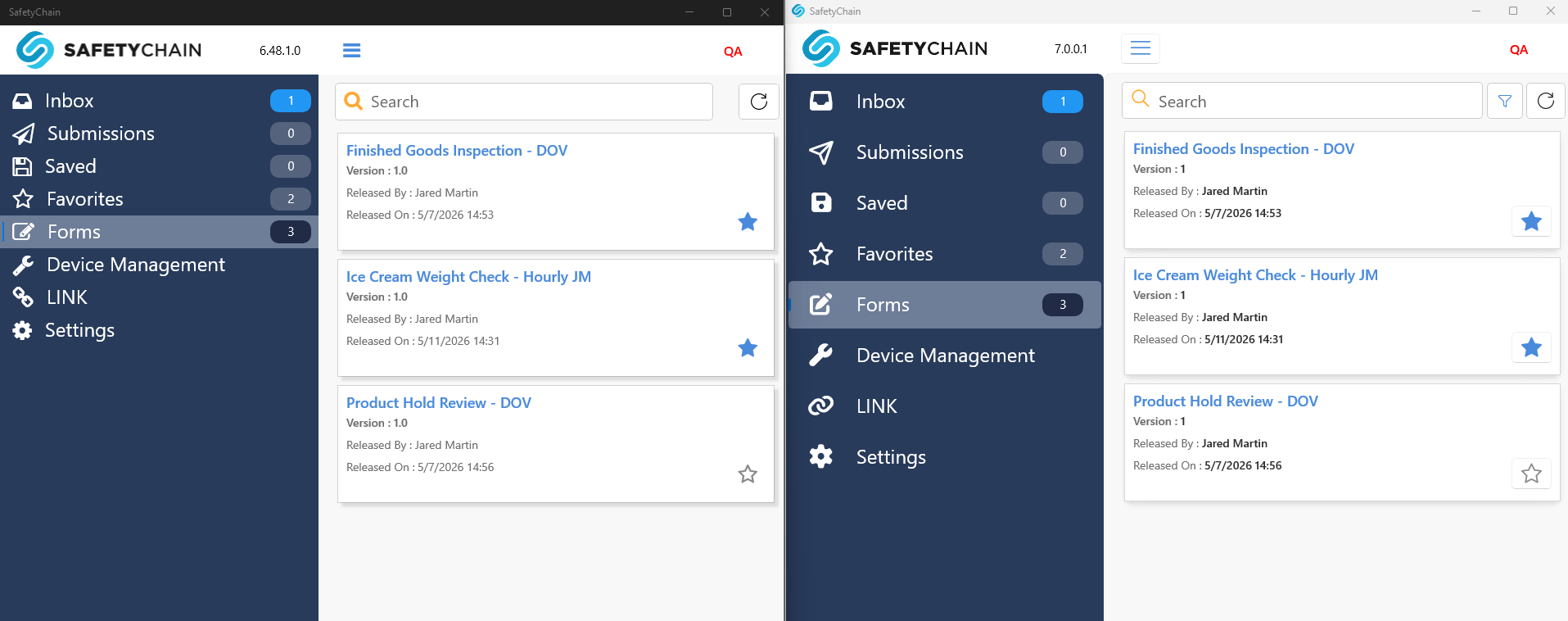
Refreshed UI
Minor UI differences such as increased padding around menu selections and more modern styling give v7.0 a fresh look. You might also notice style differences with calendar/date pickers, dropdowns, and other elements.
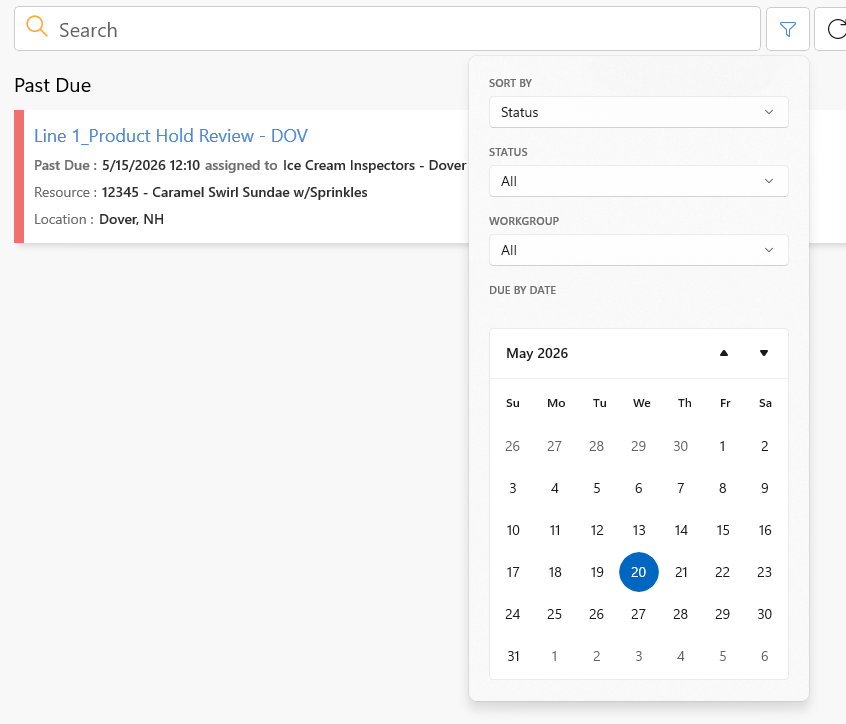
New Filters Experience
Search filters and sort have moved to a dropdown menu - same options, now just with streamlined access.
Logs ON by default
Logs used to require manual enablement, which meant retrying the problem to capture useful information — and often missing critical detail on issues that were hard to reproduce. Logs are now on by default. When something goes wrong, users just send them.
Behavior Change: Time Now Expressions
TIME NOW expressions populate a Time field with the current time when a form is opened. On the PC app, these previously recalculated when an in-progress form was reopened after a save. After v7.0, Time fields configured with Time Now hold their value after saving and reopening a form, so workflows like process-duration calculations work reliably again. This behavior is now unified across web, mobile, and PC.
Dynamic Flow — PC is catching up!
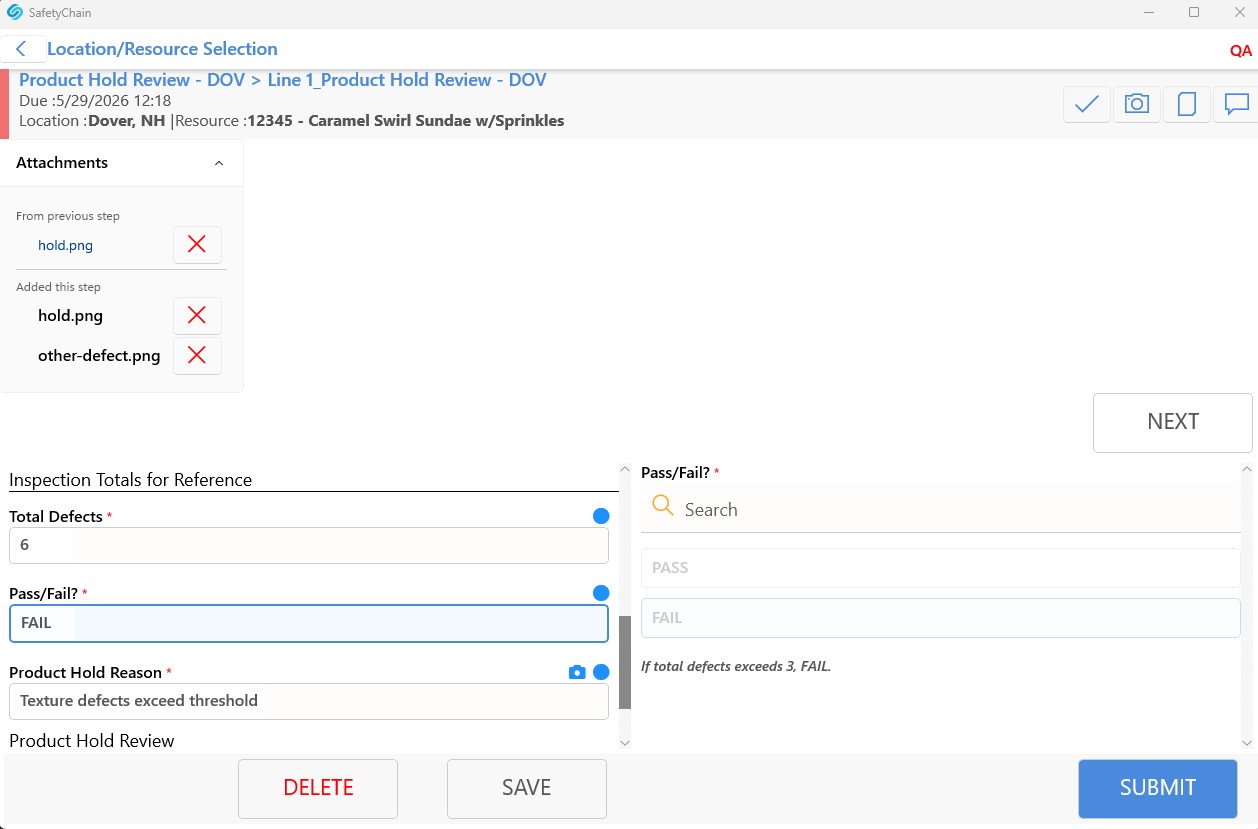
Attachment carryover — When attachments are added to a Dynamic Flow form on mobile or web, they carry forward into subsequent steps. This has been the behavior on mobile and web since earlier this year; v7.0 closes the gap on PC.
Attachment and value locking — v7.0 respects the new Dynamic Flow locking and read only controls:
Locked attachments — attachments carried forward can be configured so they can't be removed or replaced in downstream steps.
Read-only values — field values carried forward can be configured as read-only once set.
On PC, read-only values are disabled, and carried-over attachments are housed in a “From previous step” section, keeping them separate from newly added attachments (“Added this step”).
What to expect next
Here's the short version of what's coming and what to do about it:
v7.0 goes live in the Microsoft Store in the coming weeks. We'll follow up with release notes when it's available.
It's a fresh, opt-in install under a new name — SafetyChain for Windows. Your current app keeps working until you're ready to move.
When you do move, plan to run a single app in production and uninstall the old one (sync in-progress records first).
If you deploy via MSIX, watch for the deployment survey — completing it is how you'll request packages once that method is finalized.
If anything about the move gives you pause, loop in your Customer Success Manager early and we'll map out the right path for your environment.